#13: Cloud Computing + 🍕
Introduction
Welcome to our session today which is about Cloud Computing.
The goals for today are to:
- Explain what cloud computing is and how it can be useful.
- Give
twothree demos including one where we speed up some Blender renders.
Before Cloud Computing
- As far back as the 60s, “time sharing” / client-server models show how computing advances are often costly / unevenly distributed; model changed in the 80s/90s when cheap microcomputers become ubiquitous.
- In the 90s/2000s people / companies had to manage their own on prem infrastructure.
- Only those who could still afford mainframes could perform/offer compute-heavy services.
Definitions Please!
According to International Organization for Standards (ISO) there are 5 key factors:
- On-demand self service: unilateral and without human interaction.
- Broad network access: Available everywhere, not just corporate / home LANs.
- Resource pooling: Provider’s resources are pooled and shared.
- Rapid elasticity: rapid provisioning and releasing; can appear unlimited.
- Measured service: access to resources is monitored, logged and billed.
Advantages
In a way, cloud computing is kind of a return to that older model from the 60s and 70s, putting the power of ‘big iron’ or mainframes into the hands of anyone who’s got a few bucks (or a few thousand).
- Available everywhere, always on
- It’s someone else’s problem to make sure the infrastructure is working
- Flexible / Scalable: CPU / RAM / GPUs on demand etc etc
- Maintenance, power included
- Ability to rent a globally available IP
- Costs: renting a super computer for a short burst or renting a small instance for months/years
- Scriptibility
- ‘remote terminals’ can be lightweight, fanless, and or have batteries last for hours
Disadvantages
- There is no cloud…

- “Cost”
- Did you shut it off?!
- Is cloud computing actually cheaper?
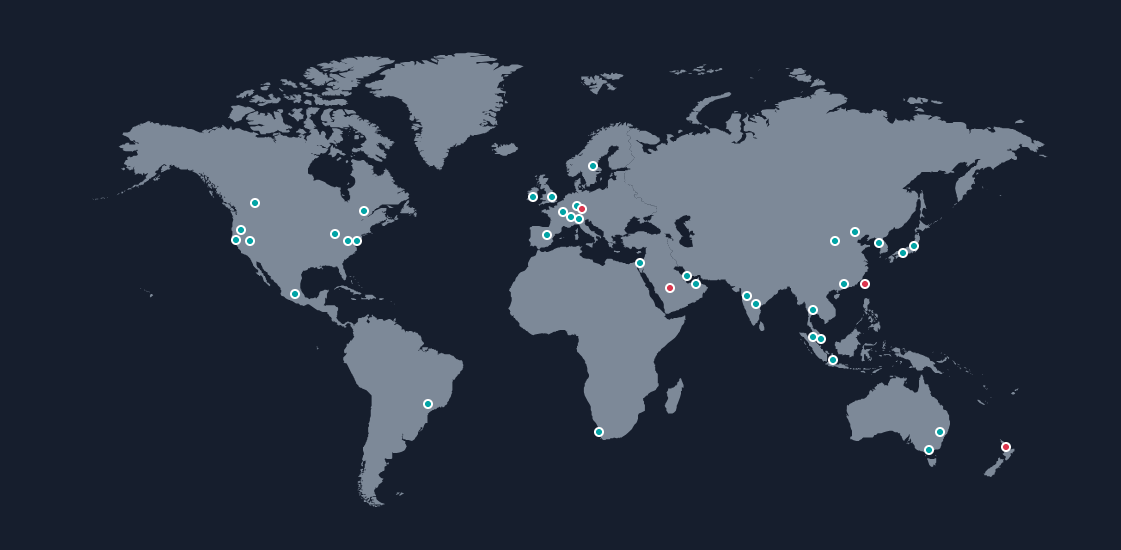
- Locality and Latency:
- More concerns around security
- Must trust provider
- Public IPs? Firewall?
- Sharing hardware with other people!
- most ‘instances’ are a part of a larger computer!
- Lots more details here
Use Cases
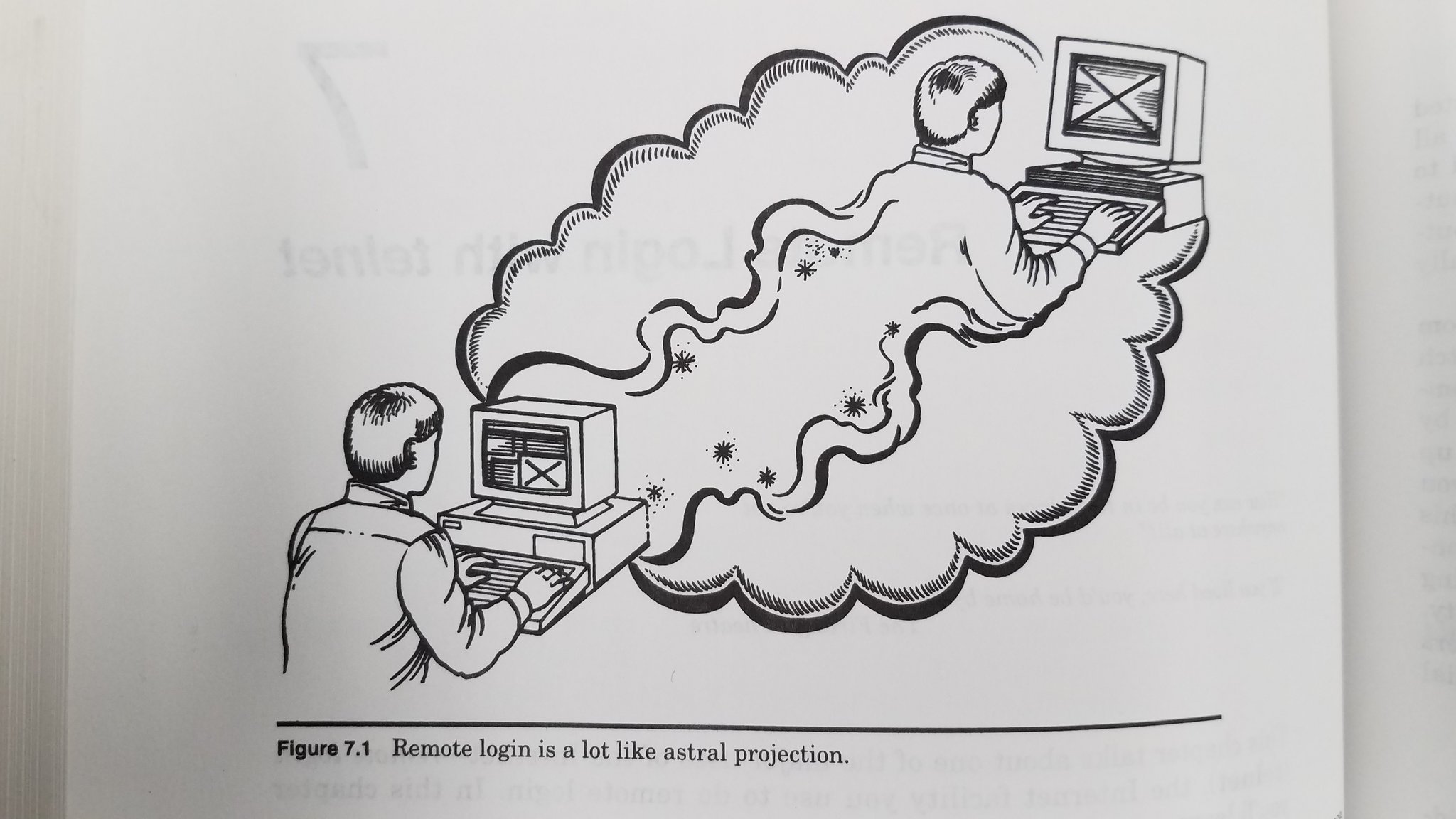
Cloud Computing is often pitched at big companies but the key point of this talk is that there’s no reason you can’t use them for your own personal projects or assignments (though you should never NEED to use a paid service for your coursework!). It’s nice to know it’s possible to access this power / hardware on a temporary basis and that’s why we’re covering it in Missing Semester.
Here are a few uses for cloud computing that might be more relevant to students:
- Hosting services eg:
- Websites, databases
- Number crunching eg:
- Rendering
- Compiling
- ML Training
- The whole self hosting universe
- Make your own VPN
- Git servers
- Nextcloud
- Mastodon instance
- Cloudy gaming
- Testing software
- ARM and Mac OS instances
So how does this all work?
We’re going to be demonstrating the concepts above via Amazon’s Elastic Compute Cloud (EC2) but first a few notes:
- This is not an advertisement for Amazon! Many other cloud providers (Google, Hetzner, Linode, Azure) exist. Amazon’s is just the oldest and the one I’m most comfortable with.
- The interface for AWS is a bit hairy; there might be simpler solutions out there!
- We’re mostly going to be talking about rentable virtual computers with EC2. However, EC2 is only a part of ‘cloud computing’ / Amazon Web Services (AWS); AWS has over 200 other services including EBS, S3, Lambda (serverless), Cloudfront, etc etc.
- We’re going to be working with 64-bit x86 linux instances but you can also create instances for other OSes / architectures including Windows.
Instance Types
Anyway, EC2 (and others) have a few different types of computers to rent:
- General Purpose: eg A1, T3, T2, M5, M5a, M4, T3a
- Compute Optimized: eg C5, C5n, C4
- Memory Optimized: eg R5, R5a, R4, X1e, X1, High Memory, z1d
- Accelerated Computing: eg P3, P2, G3, F1
- Storage Optimized: eg H1, I3, D2
Pricing
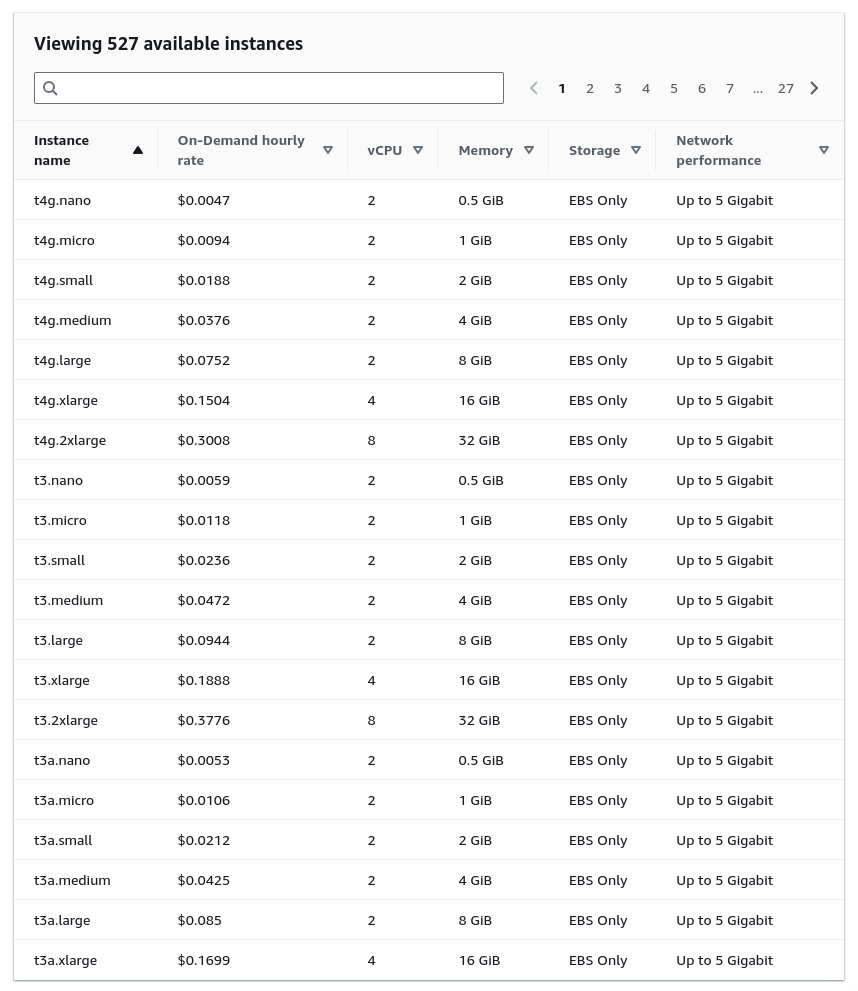
- On demand pricing
- Remember: ~720 hours in a month
- But also “bursts”
- page 1 of 27:
- Savings plan – probably not super relevant to us
- Spot Instances
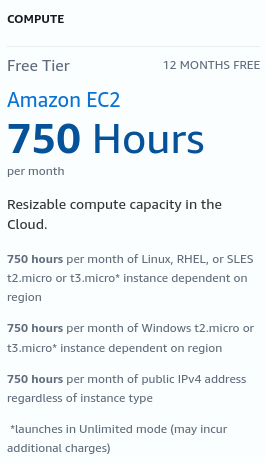
- Free Tiers:
Demo Time!
Lets explore two three use cases together!
Demo 1: Micro Instance
- You can follow this to get a low-spec machine running on a free tier
- Stick with free tier eligible stuff!
- You’ll need:
- An Image (or AMI): Amazon Linux is fine
- A desired instance type: smallest is okay
- A key pair
- A network
- A security group: ssh + web ports
- An EBS volume: 8GB is fine.
- If all goes well you’ll be at a remote terminal now!
- Now you’re at a terminal interface on a machine potentially in another country. Good think you’ve been coming to Missing Semester!
$ echo "Hello Missing Semester" > index.html $ sudo python3 -m http.server 80 # default is 8000 - Copy the public IP address of the server once more
- Now visit
http://$IPin your web browser! - This sort of instance would be perfect for some low-power server software you might want to run or experiment with.
Demo 2: Rendering

Blender is FOSS 3D modeling and animation software. Whenever they release a new version, there is a new splash screen. The scenefiles that were used to make these splash screens are distributed on blender’s website as a good example of a self-contained complex scene.
Lets try to render the Blender 3.2 splash screen image, White Lands, by Oksana Dobrovolska.
- Also, let me show you how slow this is on my laptop!
- Estimate: roughly an hour and a half.
- EC2 Settings:
- Name: blender-demo
- AMI: debian
- Instance type: c5.4xlarge
- key-pair: same for now
- Security Group: something with ssh access (we’ll ‘forget’ to include rdp)
- 30GB drive
- A note about Quotas; might need to request access in advance!
- Quotas are good actually
- Connect with something like:
ssh -i keypair.pem ubuntu@18.168.154.102 - Then:
$ sudo apt update $ sudo apt install -y xfce4 xrdp htop $ sudo adduser demoguest # set password to, eg, "demo" $ su - demouser $ wget https://download.blender.org/demo-files/splash-screens/blender-3-2/blender-splash-3-2-v2-640d7b753da44f1a8c9629209b46305a.blend $ wget https://ftp.halifax.rwth-aachen.de/blender/release/Blender5.0/blender-5.0.1-linux-x64.tar.xz $ tar -xf blender-5.0.1-linux-x64.tar.xz - Edit the security group to include RDP access
- Connect with an rdp client, open the file in blender, and start rendering!
- This kind of setup is sometimes called VDI – Virtual Desktop Infrastructure
Demo 3: Rendering w/ GPU acceleration
We probably don’t have time to demo this but I was able to rent a third machine with GPU hardware.
- Same settings as above except:
- Instance type: g5.xlarge
- Security Group: ssh access only
- Then:
$ sudo apt update # update apt sources to include "main contrib non-free non-free-firmware" $ sudo apt install linux-headers-$(uname -r) build-essential dkms nvidia-detect $ sudo apt install nvidia-driver nvidia-kernel-dkms # reboot computer $ nvidia-smi # should now give some output, detecting GPU $ sudo apt install -y htop $ sudo adduser demoguest # set password to, eg, "demo" $ su - demouser $ wget https://download.blender.org/demo-files/splash-screens/blender-3-2/blender-splash-3-2-v2-640d7b753da44f1a8c9629209b46305a.blend $ wget https://ftp.halifax.rwth-aachen.de/blender/release/Blender5.0/blender-5.0.1-linux-x64.tar.xz $ tar -xf blender-5.0.1-linux-x64.tar.xz - No need to setup a graphical session here – we can render headlessly:
# CPU only $ ./blender-5.0.1-linux-x64/blender -b blender-splash-3-2-v2-640d7b753da44f1a8c9629209b46305a.blend -f 1 -- --cycles-device CPU # GPU only $ ./blender-5.0.1-linux-x64/blender -b blender-splash-3-2-v2-640d7b753da44f1a8c9629209b46305a.blend -f 1 -- --cycles-device CUDA # CPU+GPU $ ./blender-5.0.1-linux-x64/blender -b blender-splash-3-2-v2-640d7b753da44f1a8c9629209b46305a.blend -f 1 -- --cycles-device CUDA+CPU - Check out these Rendertimes in GPU-only mode; the render finishes in 2 minutes and 20 seconds, about a 60x speedup from my laptop.
<snip>
00:03.413  render           | Fra: 1 | Mem: 1450M | Sample 0/128
00:04.230  render           | Fra: 1 | Remaining: 01:43.73 | Mem: 1699M | Sample 1/128
00:05.891  render           | Fra: 1 | Remaining: 02:36.11 | Mem: 1699M | Sample 2/128
00:09.276  render           | Fra: 1 | Remaining: 03:01.76 | Mem: 1699M | Sample 4/128
00:15.148  render           | Fra: 1 | Remaining: 02:56.02 | Mem: 1699M | Sample 8/128
00:25.253  render           | Fra: 1 | Remaining: 02:32.88 | Mem: 1699M | Sample 16/128
00:41.106  render           | Fra: 1 | Remaining: 01:53.08 | Mem: 1699M | Sample 32/128
01:08.428  render           | Fra: 1 | Remaining: 01:05.01 | Mem: 1699M | Sample 64/128
01:21.011  render           | Fra: 1 | Remaining: 00:46.55 | Mem: 1699M | Sample 80/128
01:32.969  render           | Fra: 1 | Remaining: 00:29.85 | Mem: 1699M | Sample 96/128
01:45.191  render           | Fra: 1 | Remaining: 00:14.53 | Mem: 1699M | Sample 112/128
02:19.277  render           | Fra: 1 | Mem: 1699M | Sample 128/128
02:19.277  render           | Fra: 1 | Mem: 1699M | Finished
02:19.739  render           | Saved: '/tmp/0001.png'
02:19.739  render           | Time: 02:19.28 (Saving: 00:00.31)
- Left as an exercise to the reader to retrieve any locally rendered files back (hint: look at the
scpcommand)
Final Reminder:
Also note that terminated instances will stick around in interface for a bit...
Otherwise, have fun!
Licensed under CC BY-NC-SA.